
How to Sync Obsidian for Free on Every Device (2026 Guide)
I liked the idea of Obsidian, but before I started using it I had to make sure I could sync my vaults to any device I have. I went scorched earth on subscriptions a while back, so I wanted to figure out how to do it without a new one. A few bucks a month isn’t much, but it quickly adds up when every app known to man requires a subscription.
I have a Dropbox subscription and, if I’m taking text notes, I should be able to use Dropbox to sync them. A few months ago I finally bit the bullet, canceled my Evernote account I had for 15 years and imported all my Evernote data into Joplin. I also have yet to pay to sync my Obsidian vaults and I sync them to:
- Two MacBook Pros
- A Windows desktop
- An iPad
- An Android Phone
Device Compatibility Matrix
| Sync Method | Windows | Mac | Linux | Android | iOS (iPhone/iPad) | Cost |
|---|---|---|---|---|---|---|
| Obsidian Sync (Official) | ✅ | ✅ | ✅ | ✅ | ✅ | Subscription, from $4/mo annual |
| Synch (Third-party) | ✅ | ✅ | ✅ | ✅ | ✅ | Free tier, paid from $1/mo |
| Remotely Save (Plugin) | ✅ | ✅ | ✅ | ✅ | ✅ | Free, PRO free during beta |
| Google Drive Sync (Plugin) | ✅ | ✅ | ✅ | ✅ | ✅** | Free, but beta software |
| Git (Plugin/Native) | ✅ | ✅ | ✅ | ✅ | ✅* | Free, iOS client is a paid unlock |
| Syncthing | ✅ | ✅ | ✅ | ✅ | ✅** | Free, iOS client is paid |
| Self-hosted LiveSync | ✅ | ✅ | ✅ | ✅ | ✅ | Free, you pay for the server |
| iCloud | ✅*** | ✅ | ❌ | ❌ | ✅ | Free within your iCloud storage |
| Dropsync / FolderSync | ✅ | ✅ | ✅ | ✅ | ❌ | Free tier, one-time paid unlock |
* Requires third-party apps like Working Copy or GitSync on iOS. See what actually works for Obsidian git sync on mobile for which client to pick and what each one costs.
** Requires third-party apps like Mobius Sync or SyncTrain on iOS.
*** Known for potential duplication/corruption issues on Windows. See the full iCloud walkthrough for what actually breaks.
** On iOS you can’t install this plugin the normal way. You have to set the vault up on a desktop that already has it and copy the whole thing over.
- Device Compatibility Matrix
- Which Method Should You Pick?
- One Rule Before You Start
- Do You Need Another Plugin or Service to Sync Your Obsidian Vault?
- Obsidian Sync
- Synch
- Remotely Save
- Google Drive
- Git
- Syncthing
- Self-hosted LiveSync
- Dropsync or FolderSync
- iCloud
- Frequently Asked Questions
- Conclusion
Which Method Should You Pick?
Skip to the line that matches the devices you actually own. The rest of this post is the detail behind each answer.
- Mac plus iPhone or iPad, and nothing else. Use iCloud. It’s already on your devices and Obsidian has a built-in option for it. I wrote a full iCloud walkthrough covering what breaks.
- Windows plus Android. Remotely Save pointed at whatever cloud storage you already pay for, or Dropsync if you’re a Dropbox person. Don’t use iCloud for this, even though Windows technically has an iCloud app.
- Mac plus Windows, no phone in the mix. Put the vault in any cloud folder you already have and stop there. You don’t need a plugin at all. Just make sure both machines keep the folder stored locally instead of leaving it in on-demand mode.
- Linux anywhere in the mix. Syncthing, or Remotely Save with S3 or WebDAV. Most consumer cloud apps have no real Linux client, which knocks out the easy answer before you start.
- iPhone or iPad and you don’t want to pay. That’s the hard case, because of the iOS sandbox. I broke it out into syncing Obsidian on iPhone and iPad for free.
- You have all of them. Remotely Save or Obsidian Sync. Those are the two that cover every platform without making you install a different helper app on each device. Free versus paid is the only real question left.
- You want version history more than you want sync. Run git on the desktop for the history and use something else for the phone. That hybrid is what I actually do.
One Rule Before You Start
Never point two sync systems at the same vault.
This is the mistake that eats notes, and it’s easy to make by accident. You set up Remotely Save, it works fine, and then a month later you also drop the vault into your iCloud folder because that seemed convenient. Now two systems are both writing to the same files on their own schedules, neither one knows the other exists, and the loser of that race is whichever version of your note got overwritten. Obsidian Sync plus a cloud folder is the same trap. So is Syncthing plus Dropbox.
Pick one method per vault and let it do its job. If you want to switch methods later, turn the old one off completely, copy the vault somewhere safe, and then set up the new one.
The other thing worth knowing up front is what a conflict actually looks like. Most of these methods resolve one by keeping both versions and renaming a file, so a conflict shows up as a duplicate note with a device name or a timestamp bolted onto the filename. That’s the good outcome. Search your vault for those every so often, because they pile up and nothing is going to tell you they’re there.
Do You Need Another Plugin or Service to Sync Your Obsidian Vault?
If you have a cloud service account, like Dropbox, OneDrive, iCloud, and the others, and only use Obsidian on desktop and/or laptop computers, that should be all you need to sync between these devices. Just save your vault to your cloud folder and install your cloud app on each of these devices.
But if you need to access your vault from a mobile device, look for other options. Which you choose depends on what type of mobile devices you have, if and what type of cloud storage service you use, your technical skills, and whether you want to pay for Obsidian Sync. The first two methods will work on all devices, without the need to install different apps on different platforms.
Obsidian Sync
Use this method, if:
- You don’t mind paying a subscription fee (billed annually or monthly)
- Need to sync to any device you can install Obsidian on.
That being said, Obsidian Sync starts at $4 a month billed annually, which beats the $20 a month cost of Evernote. Every tier includes:
- End-to-end encryption
- Version history for each note (this alone might be worth it)
- The ability to sync to Mac, Windows, Linux, iOS, and Android
- And you can work offline and sync later
There are two tiers, and the monthly price is higher than the annual one, so here is the whole picture:
Sync Standard, $5 a month billed monthly or $4 a month billed annually:
- 1 synced vault
- 1 GB total storage
- 5 MB maximum file size
- 1 month version history
Sync Plus, $10 a month billed monthly or $8 a month billed annually:
- 10 synced vaults
- 10 GB total storage, upgradable to 100 GB
- 200 MB maximum file size
- 12 month version history
Storage is account-wide across all your vaults, and version history and attachments count against it. For a text-only vault, 1 GB is a lot of notes. If you paste in a lot of images or PDFs, Standard’s 5 MB per-file cap is the limit you will hit first, not the 1 GB.
And it’s as easy as signing up and then logging in through Obsidian.
Synch
Use this method, if:
- You want something that behaves like Obsidian Sync but costs a dollar instead of five.
- You want end to end encryption without running a server yourself.
- You’re comfortable trusting a newer, smaller project with your notes.
Synch is the new entrant, and it is aimed squarely at Obsidian Sync’s price tag. It’s open source, it encrypts your notes locally before they leave your device, and it installs as a community plugin like anything else. Version history is encrypted too, and it handles conflict resolution and deleted file recovery, which are the two things that separate an actual sync service from a folder that copies files around.
The tiers as they stand:
- Free, $0: 1 vault, 50 MB, 1 day of version history.
- Starter, $1 a month or $12 a year: 1 vault, 1 GB, 1 month of version history.
- Plus, $5 a month or $60 a year: 5 vaults, 50 GB total with a 10 GB per-vault cap, 1 year of version history.
Put Starter next to Sync Standard for a second. Same single vault, same 1 GB, same one month of history, for a quarter of the price. That is not a coincidence, that’s the entire pitch.
The free tier’s 50 MB is enough to prove the thing works on a text-only vault and not much more. Treat it as a trial that doesn’t expire rather than a plan you actually live on.
The caveat: this is a young project going up against the service Obsidian’s own team builds and supports, and your Obsidian Sync money goes back into the app you’re using every day. If that matters to you, it’s a real argument, and price isn’t the only axis. But the encryption here is real and the code is open, so you can go check it instead of taking anybody’s word for it.
Remotely Save
Use this method, if:
- You don’t want to pay a subscription fee, because you already have access to one of these services:
- Dropbox
- Amazon S3 or S3-compatible (like Cloudflare R2)
- OneDrive for personal
- Webdav
- Webdis
- You need to sync to any device you can install Obsidian on.
- You store your Obsidian vaults in Dropbox
If you are setting this up for an iPhone or iPad specifically, I broke that out into its own guide on syncing Obsidian on iPhone and iPad for free, which compares Remotely Save against iCloud, Syncthing, and Obsidian Sync on iOS and explains why the sandbox makes iOS the hard case.
Remotely Save is a plugin I have used to sync my Obsidian vaults since I started using Obsidian and I only use it on my mobile devices. On my laptops, I just keep the vault in my Dropbox folder and that’s enough. If you do this, just remember to have your cloud app keep the vault folder locally on your computer and not use the on-demand storage feature for this folder. If Dropbox is your method, I went through the whole setup in detail in my Obsidian Dropbox sync setup guide, including the app-folder trap that leaves you with two copies of the vault, and what actually ends up in conflicted copies.
When I first installed it, it was strictly a free plugin and would sync your Obsidian vault to the following services:
- Dropbox
- Amazon S3 or S3-compatible
- OneDrive for personal (Just the App folder)
- Webdav: This is a set of extensions for the HTTP protocol that stands for Web-based Distributed Authoring and Versioning. You can set this up on an Apache, Nginx, lighttpd, Caddy, or Microsoft IIS server.
- Webdis: This is a lightweight multithreaded server that provides an interface to Redis.
Those have all stayed free. If you want to point it at storage you own, I walked through the S3, Cloudflare R2, and WebDAV setups and what each one actually costs, including the encryption options. What’s changed since I first wrote this is that Remotely Save added a PRO tier in the 0.5.x releases, so the plugin is no longer simply “the free one.” PRO adds:
- Google Drive
- Box
- pCloud
- Yandex Disk
- Koofr
- Azure Blob Storage
- OneDrive at the root of your drive, instead of only the App Folder
- Smart Conflict, which can merge two versions of a small markdown file instead of just keeping both and leaving you to sort it out
That OneDrive line is the one that catches people, so it’s worth spelling out. On the free tier, Remotely Save can only see /Apps/remotely-save. If your vault already lives somewhere else in your OneDrive, the free plugin cannot reach it. You either move the vault into the App Folder or you go PRO, and nothing in the setup flow warns you before you’ve already connected the account.
PRO needs an account at remotelysave.com, which is a separate signup from your Obsidian account and separate again from whatever cloud service you’re actually syncing to. Here’s the part worth knowing: PRO is free while it’s in beta, through January 1, 2027, and the price after that hasn’t been announced. So right now you can use all of it for nothing, but if you’re picking this as your permanent method you’re agreeing to an unknown number later.
And Remotely Save has been relatively easy to configure and use and I haven’t had too many issues with it. The one thing that took a while to figure out, though, was how to get the folder onto my mobile devices. I have both an iPad and an Android phone.
I use Amazon S3 storage on the job and I see how that can be a simple and relatively cheap way to sync vaults. Webdav also looks relatively easy to set up if you know web servers well. But I already had a Dropbox account, so I used it.
Here is the process I used:
- Open the Obsidian app.
- Go to Options by clicking on the gear icon.
- Go to the General section of Options and click on the Community plugins menu item. Then click on the Browse button to search for Obsidian plugins to install.
- Install and then Activate the Remotely Save plugin in your vault on your laptop or desktop computer. You don’t even have to authorize your cloud provider here unless you plan on using it on these devices.
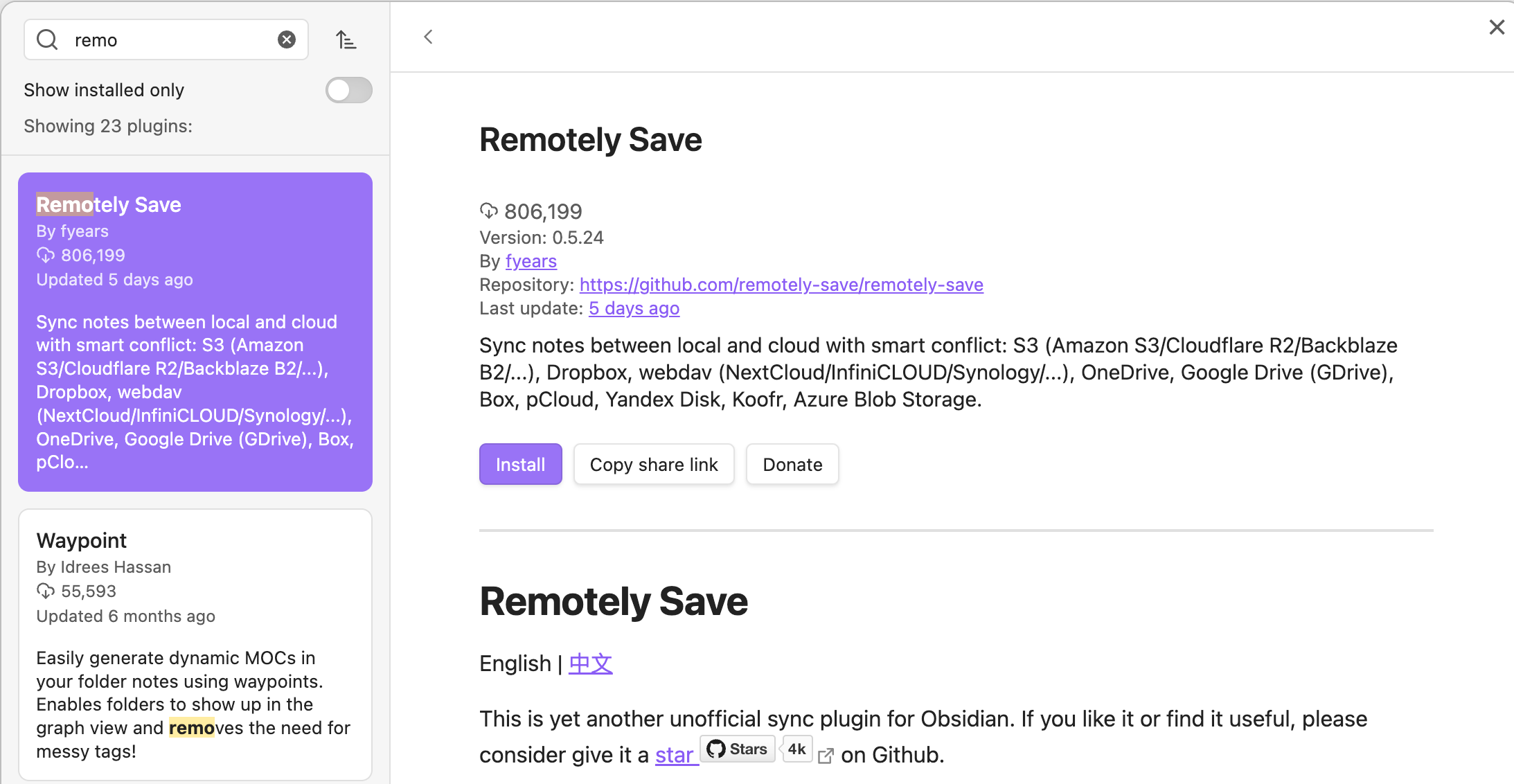
- Make sure it’s done syncing the plugin change to your Dropbox/cloud account, which should only take a second.
- To install on iOS or Android:
- Have the Obsidian App installed.
- Open your cloud storage app and download your vault to a local folder. This will be slightly different on each mobile platform, but there will be a folder that both your cloud storage app can download to and Obsidian can open.
- It will probably be a zip file you have to extract. So do that and delete the zip file.
- Have Obsidian open the vault by choosing Open folder as a vault.
Now, to authorize your cloud provider, do this:
- Open the Obsidian app.
- Go to Options by clicking on the gear icon.
- Go to the Community plugins section of Options and click on the Remotely Save menu item.
- Choose your remote service from the dropdown menu. This is a screenshot of the desktop app, but the mobile app is similar and will have the same options:
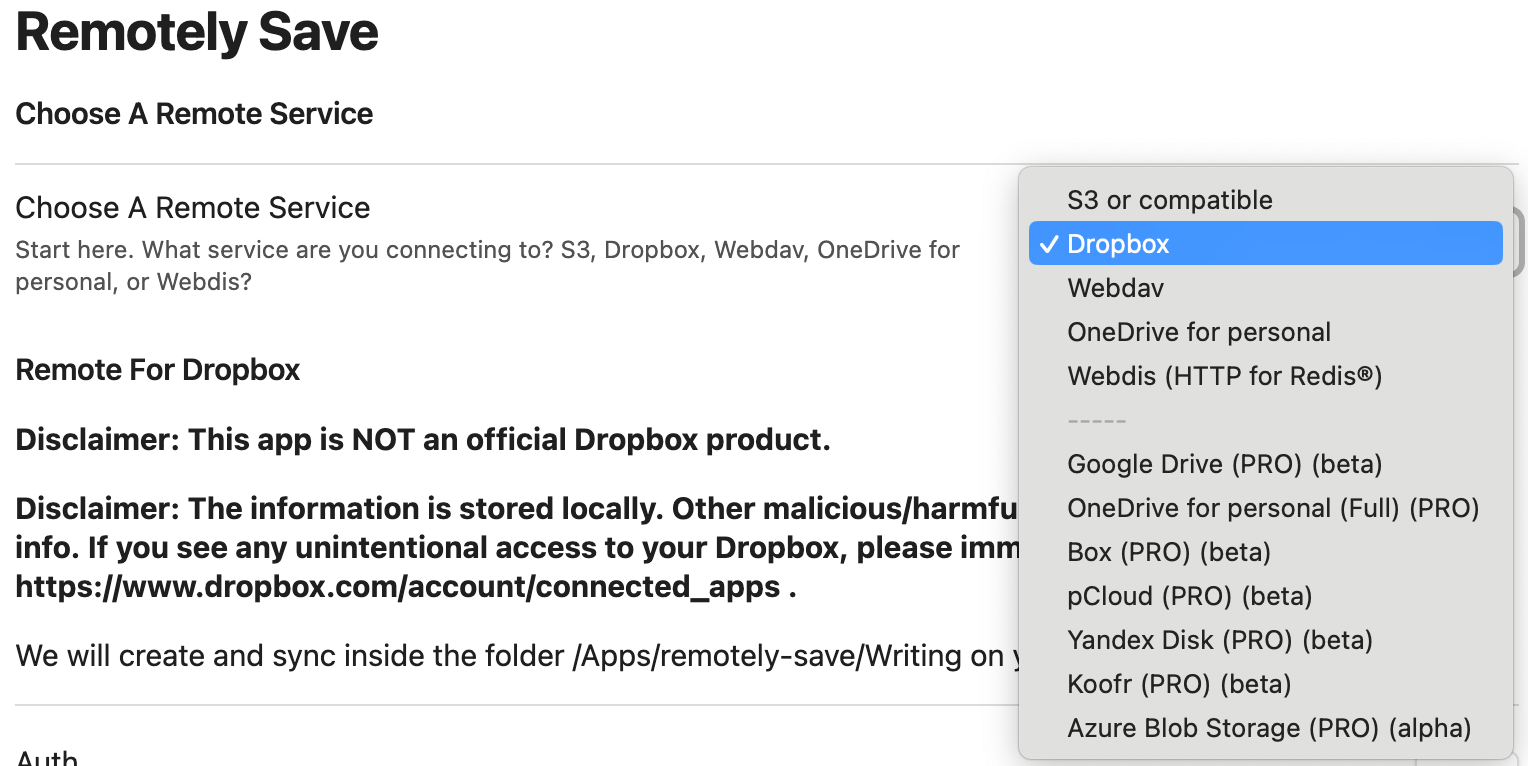
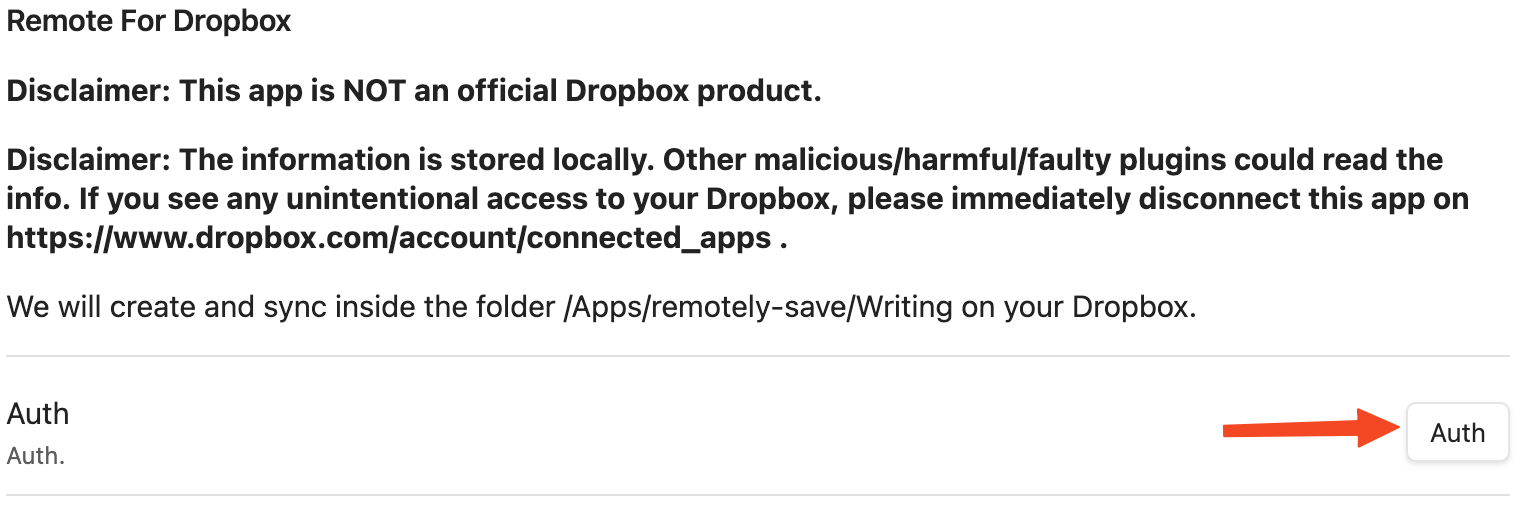
- Click the Auth button. Since I was using Dropbox, this launched a dialog with a link. I clicked the link was taken to Dropbox to authorize the plugin where I clicked another button that took me back to Obsidian and I was done.
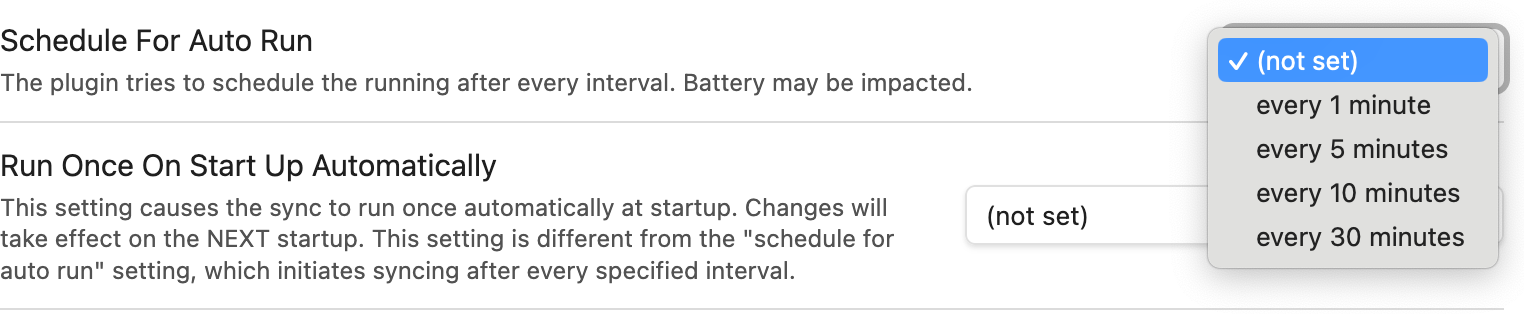
- There are quite a few settings you can configure but the only ones I have touched so far is making sure it syncs on startup and then I have it sync every 5 minutes. Other than that, I can click its button on the menu to sync whenever I want.
Google Drive
Use this method, if:
- Google Drive is the cloud storage you already have and you don’t want another account.
- You have a backup, and you actually mean it.
For a long time the answer here was “you can’t, not directly.” Remotely Save’s Google Drive support sits behind PRO, and Google Drive’s desktop client is a rough fit for a folder full of small files that change constantly.
There are now plugins for it, and the first thing to know is that there are two different ones both called “Google Drive Sync.” They are not the same project, and most search results only know about one of them.
The one in the official community plugin directory is Obsidian-Google-Drive by richardx366. It installs the normal way and it is actively maintained. The catch is auth: you don’t set up your own Google Cloud project, you authenticate through a hosted service at ogd.richardxiong.com and paste the token it gives you into the plugin. That’s a third party sitting between Obsidian and your Drive unless you self-host the token endpoint.
The one everybody links to is obsidian-gdrive-sync by stravo1. It has more stars and works on desktop, Android, and iOS, but it is not in the plugin directory (you install it manually or through BRAT), it’s still a release candidate, and it has been quiet since May 2026.
For stravo1’s, the developer’s own README is the reason for the caution, so I’ll just quote it: “The plugin is under active development, new releases might introduce bugs, old releases maybe be incompatible with the new ones. This might lead to data loss.” That’s the author telling you to back up first. They’ve also said they won’t submit it to the official plugin list until it’s stable enough not to risk anybody’s notes, which I respect a good deal more than I’d respect a confident marketing page.
Two other limits before you commit. It isn’t optimized for vaults past about 1,000 files. And on iOS you can’t install it the normal way, so you have to set the vault up on a desktop that already has the plugin and copy the whole thing across.
If Google Drive is a hard requirement, one of these is the free path and both do work. If it’s only a preference, Remotely Save pointed at S3 or Dropbox is a calmer life. I compare the two plugins, the desktop setup, and the Android gotchas in the full guide to syncing Obsidian with Google Drive.
Git
Use this method, if:
- You’re familiar with git
- And only are going to sync vaults on devices with native git support (i.e. not mobile phones and tablets)…
- Or you want to install a different app on each mobile app you have to handle the git part.
- Or want to give the Obsidian Git plugin a try…
I don’t know why I didn’t go looking for something that would do this when I started. I use git almost daily, plus it would give me the ability to make commits when I wanted to save the state a vault is in, like when I am not sure about a plugin I am installing and want the ability to roll things back. Some Obsidian plugins are relatively unobtrusive, and others rewrite and add files. And you can create free private Github repos, so this can be a 100% free way to sync your vaults.
I won’t go into step-by-step details on this method, because if you know git, you probably don’t need screenshots with arrows.
Using Git
I you don’t use Obsidian on mobile devices, using git is as simple as putting your vault in a git repo and you’re done. Just commit, push, and pull like you do when writing code.
If you have multiple devices and don’t want to try the Obsidian Git plugin, you can sync to your mobile devices with a dedicated git client instead. The one to use now is GitSync, which runs on both Android and iOS, is open source, and uses a native git implementation rather than a JavaScript one. Working Copy is the other solid iOS option, with the catch that the free version can’t push at all, so it’s read-only until you pay.
I used to recommend mgit for Android here, and I’m walking that back. Its most recent release is version 1.7.0, from January 4, 2023. It may well still work for you, but I’m not going to tell somebody to trust their notes to an app that’s had three years of silence when GitSync is maintained, does the same job, and does it better.
The purpose of both apps is the same, to give you a local copy of a git repo on your mobile device. Once you install the app, connect to the repo where your vault is stored, create a local copy, and open the local copy with the Obsidian app.
Using the Obsidian Git Plugin
The other option is installing the Obsidian Git plugin. Just install and enable it from the Obsidian Community Plugins tab. The documentation is here. I also tested installing the plugin because I might try it for revisions because once it is installed, you can install the Version History Diff plugin to compare changes.
One thing to note before doing this is that the mobile version of the plugin uses a re-implementation of git in JavaScript and can be unstable. The size of the vault that can be synced this way in mobile is limited. But that might still work for my use case, because I already am using Dropbox to sync. I might just use the Git plugin on the desktop to keep a revision history.
The Honest Answer About Git on Mobile
Most people asking about the Git plugin are really asking whether it works on their phone, so here is the straight version rather than the setup steps.
On desktop the plugin shells out to the real git binary and everything behaves the way you expect. On iOS and Android it cannot do that, so it uses isomorphic-git, a JavaScript reimplementation. That is not a small footnote. It means:
- No SSH authentication. isomorphic-git does not support it, so you are on HTTPS with a personal access token. SSH keys and SSH remotes are out.
- Repo size is capped by memory. The work happens in the app’s memory, so a large vault or a long history will make it slow, then make it fail. Vaults with a lot of image attachments hit this fastest.
- No git-lfs. If your repo uses Large File Storage, mobile is not going to cooperate.
- Big first clones are the worst case. The initial clone is where most people give up.
The plugin’s own documentation is blunt about it: the git implementation on mobile is very unstable and using the plugin on mobile is not recommended. That is the developer talking, not me.
If you want git on mobile and you want it stable, do not use the plugin for the mobile leg. Use GitSync on either platform, or Working Copy on iOS if you’re willing to pay for the ability to push, to handle the clone and the push. Then point Obsidian at the local folder those apps maintain. That is the setup described above, and it is the one that holds up.
A perfectly reasonable hybrid: run the Git plugin on desktop only for version history and backups, and sync to mobile with something else entirely.
I went deeper on all of this in a dedicated post on Obsidian git sync and what actually works on mobile. It covers the specific failure modes the plugin’s own docs warn about, why “real-time sync” is not a thing git does, and GitSync, which is the maintained mobile client the plugin’s documentation now points people toward.
I installed and activated the plugin on a vault desktop first and it warned me it wasn’t a git repo, so I turned it into one with git init on command line, created a repo on Github for it, and then set the remote of my local repo to the Github repo via command line.
I had the vault open in Obsidian at the time and there was another warning about no commits. So I closed and re-opened the vault, clicked the new Git button on the left side, and saw this, which was empty until I reopened it:
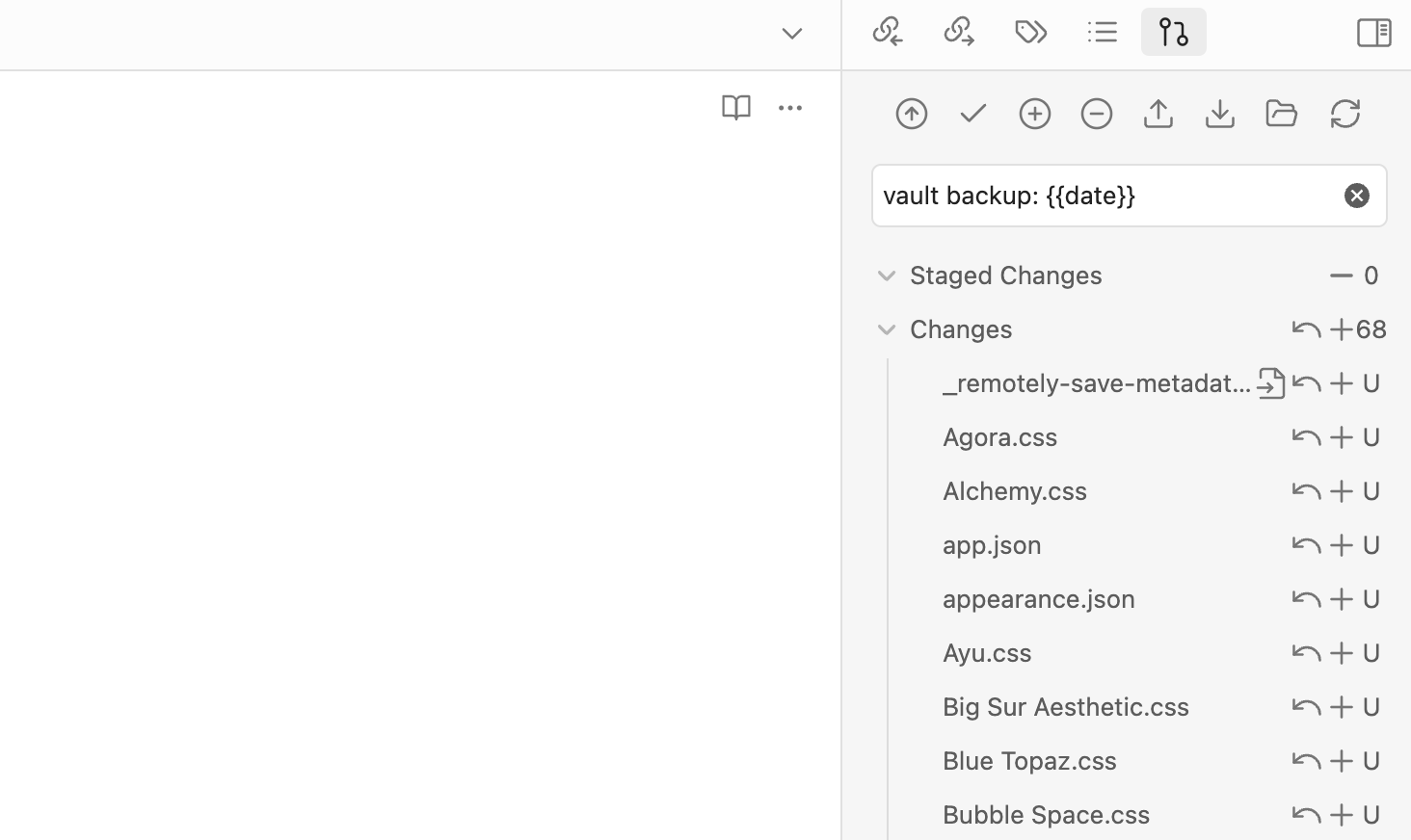
I staged all the changes with the + button, and then try to push with the arrow button. It showed me a dialog to choose my remote and I choose origin, then it asked me to choose a branch and gave me no options. So I went back to the command line and ran git push --set-upstream origin main. I figured it worked like Git in VS Code and if I set up everything in the project via command line first, it would just work and I was right.
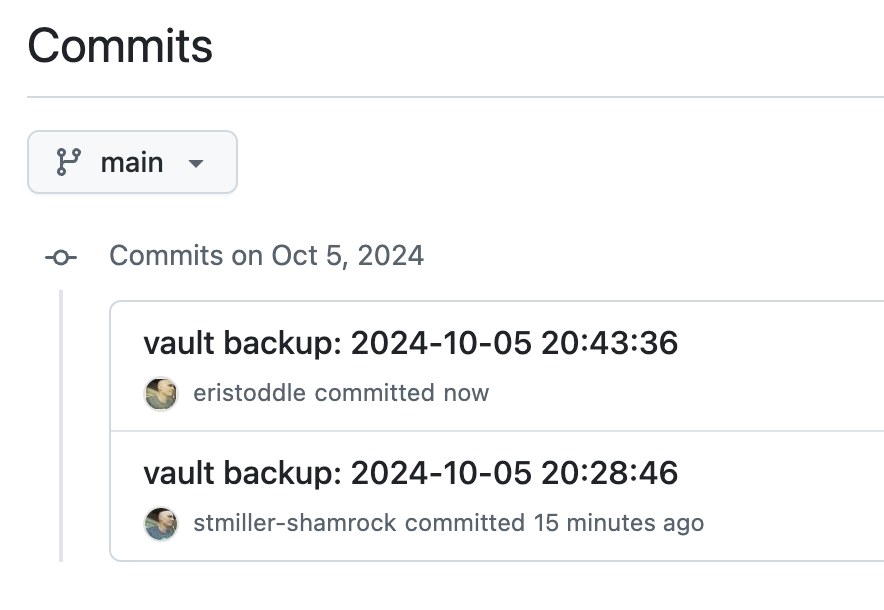
I went back and edited one of the markdown files in the vault, opened the git plugin’s panel again, clicked the + button to stage the changes, and clicked the arrow button to push and I had two vault backups in my repo. That was on a test vault. After that I installed it on my main vault. Now I have a way to roll back my vault easily if I need to.
Syncthing
Use this method, if:
- You need to sync an Obsidian vault across multiple devices (now including iOS via third-party apps).
Syncthing is a peer-to-peer file synchronization app and many users swear by this method. I probably would have considered it if I didn’t have to sync to my iPad. There still isn’t an official Syncthing app for iOS, but two third-party clients cover it now, and they are not equivalent. SyncTrain is free, open source, and has no in-app purchases at all, though it needs iOS 17 or later. That’s the one I’d start with. Mobius Sync is free up to 20 MB of files held inside the app’s sandbox, and lifting that cap is a one-time $4.99 purchase, which you will hit if your vault is any bigger than a few hundred text notes. So “is Syncthing free on iOS” finally has a real yes attached to it, as long as you pick SyncTrain. Obsidian Hub has some tips on using Syncthing, but you probably won’t need them because there is also an Obsidian plugin to make the process easier. Since Syncthing is free and peer-to-peer, this is a 100% free method of syncing your Obsidian vault.
One important update if you’re setting this up on Android: the official Syncthing Android app was discontinued, with its final release tied to the December 2024 version of Syncthing. The maintained successor is Syncthing-Fork, and it changed hands in 2026. I covered which build to install and why in how to sync Obsidian on Android for free, along with the vault location setting that decides whether Syncthing can see your notes at all.
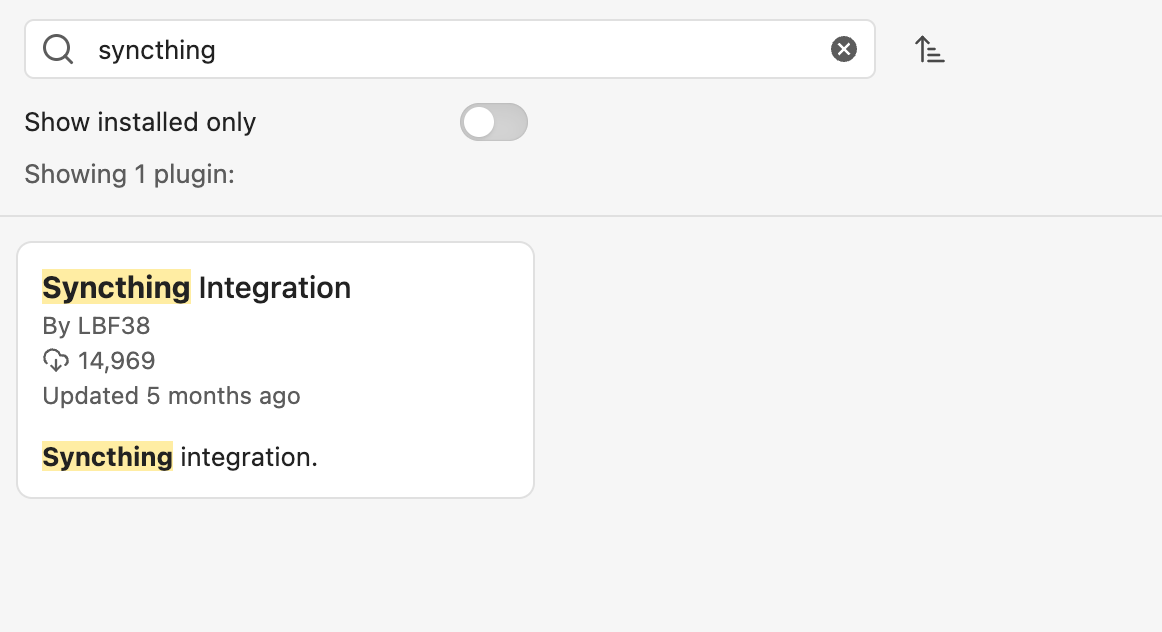
Just search for “synchthing integration” in the Obsidian Community Plugins tab to install it. Worth knowing before you do: that plugin does not perform the sync itself, it manages conflicts and shows status on top of a Syncthing you install separately. I broke the whole method out into a full Syncthing setup guide for Obsidian, covering the introducer trick for more than two devices, the ignore patterns and versioning settings, and the always-on device problem that makes people quit.
Self-hosted LiveSync
Use this method, if:
- You want real-time syncing similar to Google Docs without a subscription.
Self-hosted LiveSync has become a popular alternative for power users. It requires setting up a CouchDB server (which can be done for free on some cloud platforms). It allows for “live” syncing where changes appear on other devices almost instantly. It is compatible with Windows, Mac, Linux, Android, and iOS.
Dropsync or FolderSync
Use this method, if:
- You have a Dropbox account
- You have any type of desktop or laptop computer that supports Dropbox and Obsidian.
- You store your Obsidian vaults in Dropbox
- The only mobile devices you need to sync to are Android
This method works on all devices that the last method works on, but if you have an iOS device, you’re out of luck. For the Dropbox side of this in more depth, including the free tier limits and how to keep plugin caches out of your sync, see Obsidian Dropbox sync: a setup guide. Here are the steps to get Dropsync working:
- Install Dropsync on your Android device.
- If you don’t have your Obsidian vault in Dropbox, move them there on your computer.
- Open Dropbox on your phone and download your vault to a local folder on your Android device. It will download the folder as a zip file.
- Extract the vault from the zip file.
- Open Dropsync or Foldersync and allow any necessary permissions.
- Log into Dropbox with the sync app you chose.
- Choose “Let me create my own folder pair”, pick a name for it, and choose your vault in Dropbox.
- Next, choose the local vault you downloaded earlier and choose the Two-way sync method.
- Enable this folder pair if you need to and save it.
- Wait for the sync to finish and then you can open your local vault with Obsidian.
Foldersync is also an option and the instructions for using FolderSync to sync Obsidian notes seem similar to those for Dropsync.
I broke the whole Android side of this out into its own guide, how to sync Obsidian on Android for free, which goes deeper on FolderSync’s confusing two-app pricing, why Syncthing beats scheduled cloud sync here, and the battery settings that stop sync from running in the background without any warning.
iCloud
Use this method, if:
- You have an iCloud account
- And you only need to access your Obsidian vaults on:
- Apple Mac Computers
- iPhone
- Windows Computers (Not recommended due to stability issues)
Using iCloud works if you only use Obsidian on Apple devices. There is a version of iCloud for Windows, but people online have reported issues with corruption and file duplication. You can try it but no guarantee.
If iCloud is the method you want, I wrote a full walkthrough on setting up Obsidian iCloud sync, including what actually breaks on Windows. It covers migrating an existing vault, the “Optimize Mac Storage” setting that evicts your notes to the cloud without asking, the encryption situation, and how to clean up duplicates you already have.
To Create a Vault in iCloud
- Tap the Create new vault button in Obsidian.
- Enter a unique name for your Obsidian vault.
- Enable the Store in iCloud option.
- Tap the Create button.
To Migrate a Vault to iCloud
- Create a new empty Obsidian vault in iCloud Drive with the same name as your existing vault by following the steps above for creating a new vault.
- On your computer, move the contents of your existing Obsidian vault to the newly created iCloud Drive folder.
- Allow iCloud to synchronize the changes across your devices.
Frequently Asked Questions
Is Obsidian Sync free?
No. Obsidian Sync is the official paid service and starts at $4 a month billed annually, or $5 a month billed monthly. Obsidian itself is free for personal use, and syncing your vault is free if you use one of the other methods in this post. There’s no free tier of Obsidian Sync specifically, though Synch, the third-party alternative above, does have one.
What is Obsidian Sync?
Obsidian Sync is the first-party sync service built by the Obsidian team. It keeps an end to end encrypted copy of your vault on their servers and keeps every device you’ve logged in on up to date, including version history and the ability to restore deleted notes. It’s a subscription, and it’s the only method here that Obsidian itself supports rather than a plugin or a third-party app.
How does Obsidian sync work?
Obsidian stores your vault as a plain folder of markdown files on each device, so syncing it just means getting that folder to match everywhere. Every method in this post is a different way of doing that. Some push the files through a cloud service you already have, some copy them device to device across your network, and some track them in a git repo. Obsidian doesn’t care which one you use, because as far as it’s concerned it’s reading and writing files in a folder.
Do you have to pay for Obsidian Sync?
Only if you want the official service. You do not have to pay anything to sync an Obsidian vault. Remotely Save, Syncthing, git, iCloud, and Self-hosted LiveSync are all free, and this entire post exists because I sync five devices without paying for a sync subscription. What paying gets you is first-party support, no setup fiddling, and one less thing that can break.
Can you sync Obsidian across devices for free?
Yes, on every platform, including iOS. The two methods that cover every device without making you install a different helper app on each one are Remotely Save, using cloud storage you already have, and Self-hosted LiveSync, if you don’t mind running a server. Syncthing is free as well and now has a free iOS client in SyncTrain. The catch with free is never the price, it’s that you’re the support department when something goes sideways.
What happens if I edit the same note on two devices?
You get a conflict. Most of these methods handle it by keeping both copies and renaming one, usually with a device name or a timestamp in the filename, so what you end up with is a duplicate note to reconcile by hand. Obsidian Sync and Remotely Save PRO can merge some conflicts for you. The thing that actually loses notes isn’t conflicts anyway, it’s running two sync systems against one vault at the same time.
Conclusion
I’ve used Obsidian for over two years, but I’ve barely scratched the surface. Obsidian’s nice because it works if you need something simple or complex and I took the simple route. But I plan on digging into more of the features and plugins available to see what else it can do for me.
Like I mentioned, Remotely Save works for me, but using git has me curious. I didn’t realize there were so many options until I wrote this article though. Hopefully, you find a method that works for you.
And look for more of my posts in the future to explore Obsidian along with me.
Related Posts
Obsidian Keeps Reloading on My iPad, So I Built a Plugin to Find the Plugins Killing It
My iPad reloaded Obsidian every minute. So I built a two-button plugin to find the culprit. Then the sync broke.

Remotely Save for Obsidian: S3 and WebDAV Sync That Costs $0 on R2
Remotely Save syncs Obsidian to your own S3 bucket or WebDAV server. My 1.6GB vault costs nothing on Cloudflare R2. The setup and the catches.
Obsidian OneDrive Sync: The Setup Windows Already Installed for You
OneDrive is already on your Windows machine, so it is the easiest Obsidian sync to start. Here is how to keep it from eating notes on desktop, iPhone, and An...

Syncing Obsidian with Google Drive Is the Trickiest One. Here Is How Anyway.
Google Drive is the cloud storage everyone already has and the worst supported option Obsidian has. Here is the desktop path, the plugin, the paid route, and...