Obsidian OneDrive Sync: The Setup Windows Already Installed for You
OneDrive is the sync method nobody chooses. It chooses you. You set up a Windows machine, click through a dozen screens, and at the end of it your Documents folder lives in Microsoft’s cloud whether you asked for that or not.
So a lot of people end up syncing Obsidian with OneDrive by accident. They made a vault in Documents, and one day it showed up on their other laptop. It works great, right up until a note opens blank or a file named Daily Note-DESKTOP-7QK2M1B.md appears next to the real one. My guide to syncing an Obsidian vault across devices gives OneDrive about two lines.
- Why OneDrive Is the Path of Least Resistance
- Files On-Demand Is Why Your Notes Vanished
- OneDrive on a Mac
- What OneDrive Refuses to Sync
- iPhone and iPad: Remotely Save or Nothing
- Android: Remotely Save or a Sync App
- Personal vs. Business: Your Work Account Is Out
- The Cost Math If You Already Pay for Microsoft 365
- Should You Use It?
Why OneDrive Is the Path of Least Resistance
On Windows, OneDrive is already installed, already signed in, and already syncing something. There is no client to download and no account to create. If your whole Obsidian life happens on Windows desktops and laptops, you could stop reading after the next section and be fine.
Obsidian’s own help page says about as much. It calls OneDrive “a popular cloud storage option for Windows and macOS users” and then, in the same breath, says it “has limitations on Android and isn’t officially supported for syncing Obsidian vaults on iOS.”
That sentence is the whole reason for this post. Desktop is easy if you flip one setting. Phones are where it starts costing you time.
Files On-Demand Is Why Your Notes Vanished
OneDrive’s Files On-Demand shows every file in File Explorer whether or not the bytes are actually on your disk. A blue cloud icon means the file is online-only. A green check means it’s on this machine for now. A solid green circle with a white check means it is pinned and stays.
Obsidian needs the third one. It watches the vault folder and expects every file it sees to be a file it can read right now. An online-only note is a promise, not a file. Search misses it. Links to it look broken. A plugin tries to load its own settings and gets nothing. And none of this throws an error. It just looks like Obsidian forgot things.
The fix on Windows takes ten seconds:
- Open File Explorer and find your vault folder.
- Right-click it.
- Choose Always keep on this device.
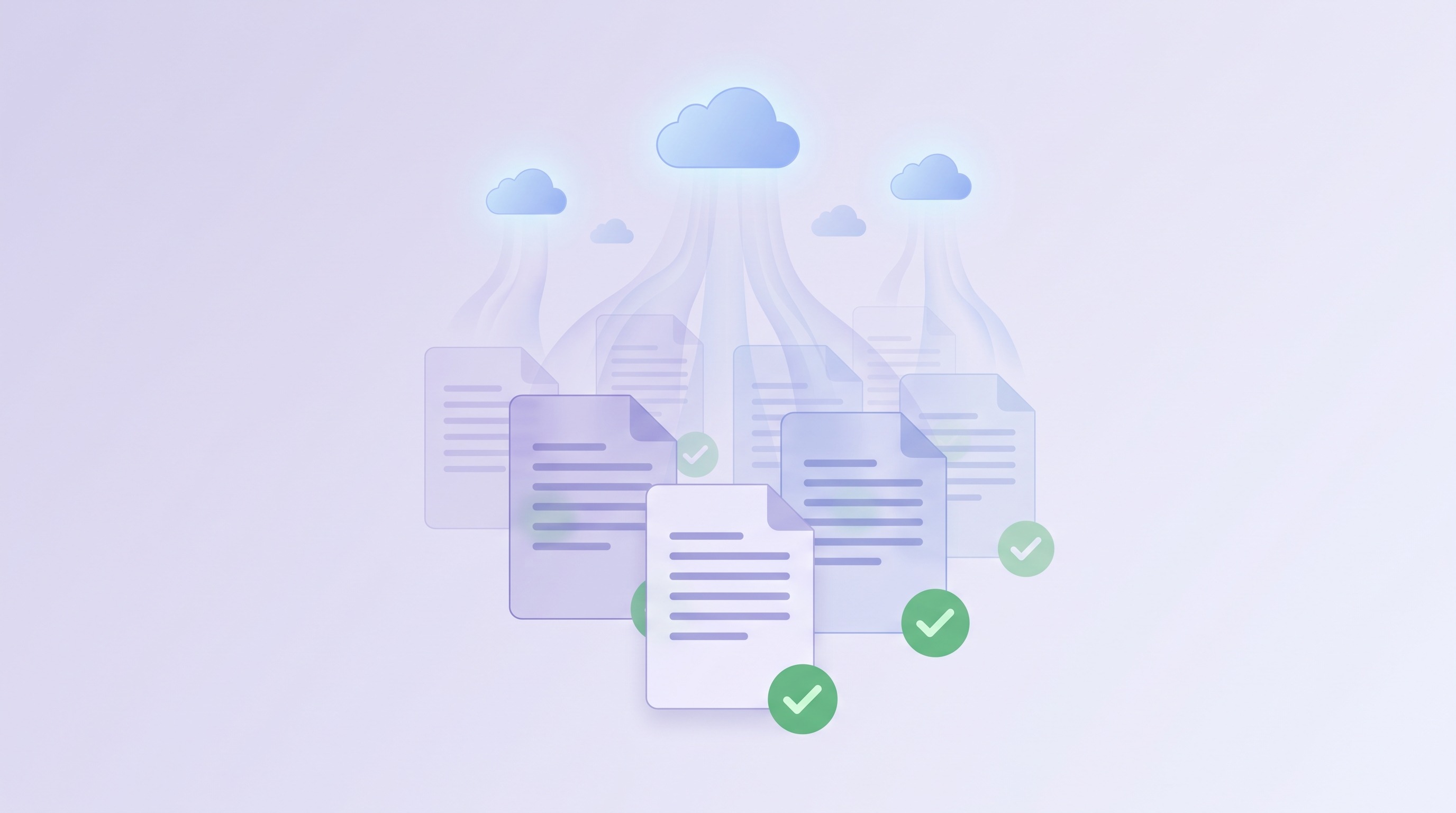
Wait for the icons to go solid green. Now it’s a real folder full of real files, and Obsidian stops acting psychotic.
Microsoft also removed the old on/off switch for Files On-Demand. What’s left is two buttons, buried with the rest of OneDrive’s settings: click the OneDrive cloud icon in the system tray, open Settings, and look under Sync and backup → Advanced settings. There you get Free up disk space (the default) and Download all files, which is the old “off.” If your whole OneDrive is small, Download all files is the blunt fix. If it is a terabyte of family photos, pin just the vault.
Storage Sense will undo your work
Here is the trap after the trap. Windows has a feature called Storage Sense that frees up disk space on a schedule, and Microsoft’s documentation says that with it turned on, locally available OneDrive files “will become online-only files after the time period you’ve selected.”
So you open your vault every day, everything is fine, and then a note you haven’t touched since spring comes back blank. That’s why pinning the vault folder matters: Storage Sense leaves pinned files alone and only reaps the ones that are merely local. Don’t just open the notes and assume they stay downloaded. The setting lives at Settings → System → Storage → Storage Sense, where a dropdown decides how long an unpinned OneDrive file gets to stay on disk. Set it to never, or at least to longer than your oldest note is likely to sit unopened.
OneDrive on a Mac
Mac users end up on OneDrive because work gave them Microsoft 365, or because they also have a Windows machine and want one cloud. It’s a real combination, and almost every Obsidian guide skips it.
The thing to know is that on macOS 12.3 and later, you can’t turn Files On-Demand off. Microsoft moved OneDrive on the Mac to Apple’s File Provider framework, and its own support page says Files On-Demand “must always be enabled.”
That runs head-on into Obsidian’s advice to avoid the feature, and the way out is the pin: Obsidian doesn’t care about Files On-Demand itself, it cares that no vault file is ever online-only. Pinning the vault is what “avoid” looks like when the off switch is gone.
Your OneDrive folder lives at ~/Library/CloudStorage/OneDrive-Personal, macOS controls it, and you can’t move it.
The fix is the same as Windows, with one navigation trap: ~/Library is hidden, so don’t go hunting for the folder by browsing. OneDrive shows up in the Finder sidebar under Locations, or press Cmd+Shift+G and paste the path. Right-click the vault folder, pick Always keep on this device, then open the vault in Obsidian from that CloudStorage path. Since you can’t disable the feature globally, pinning the vault is the only defense you get, so do it before you open the vault, not after the first blank note.
What OneDrive Refuses to Sync
OneDrive has opinions about filenames. Obsidian already refuses most of these characters in note titles, so this usually bites attachments and files that got into the vault some other way: a downloaded PDF, a clipped image, a folder you dragged in from Finder.
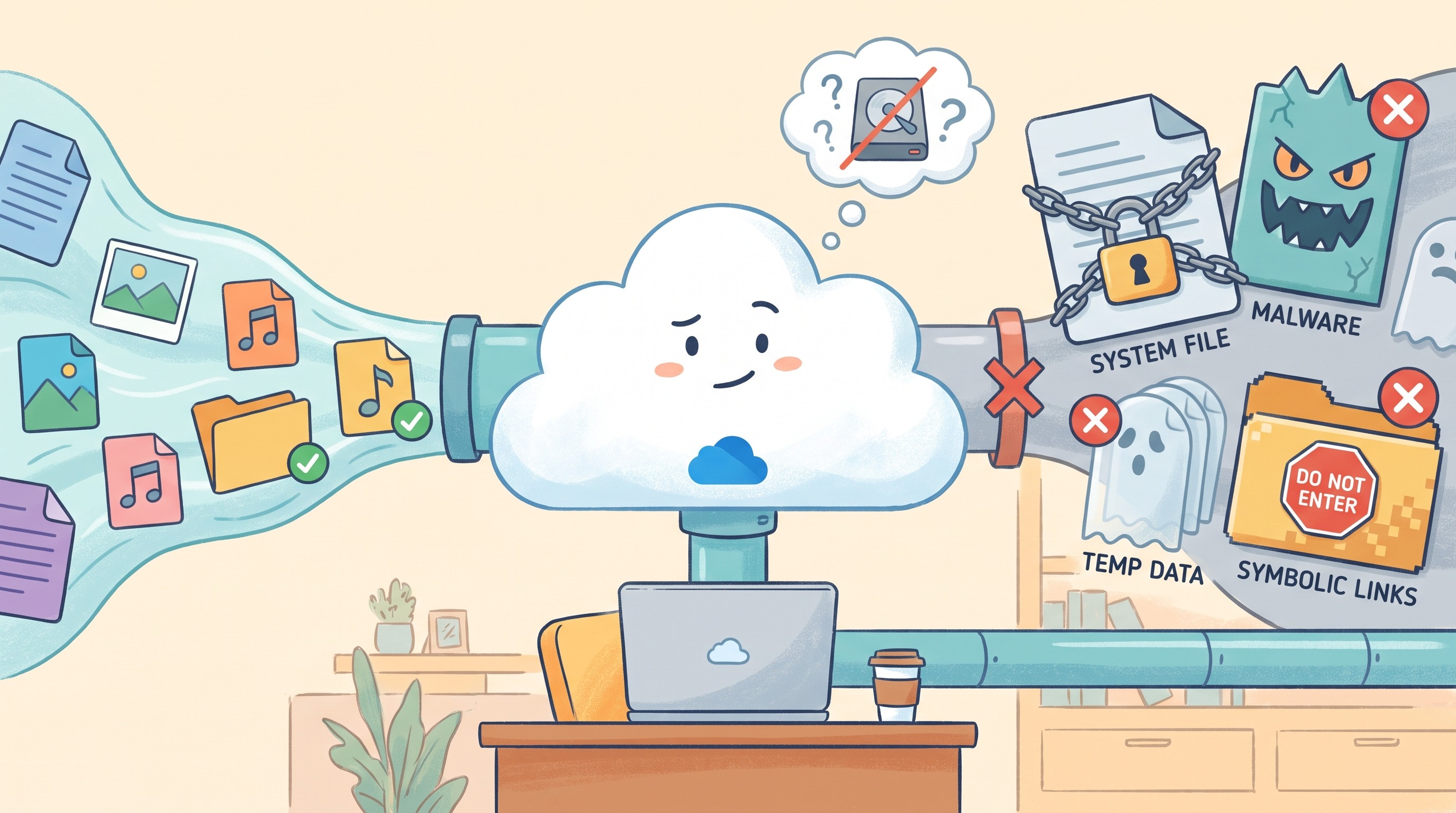
- Characters like
" * : < > ? / \ |are not allowed. Leading and trailing spaces are out too. - Reserved names cover
CON,PRN,AUX,NUL,COM0throughCOM9,LPT0throughLPT9, and anything with_vti_in it. You probably don’t have a note calledAUX. Someone does. - Path length caps the full path, filename included, at 400 characters. “Decoded” just means OneDrive counts what you’d see in Explorer, not the URL-escaped version with
%20standing in for every space. Deeply nested folders plus long note titles get there faster than you would think.
The .obsidian folder with your settings and plugins is not on Microsoft’s blocked list, so it rides along. That means plugin settings sync between desktops, which is mostly what you want.
The duplicate file with your computer’s name in it
When OneDrive can’t reconcile two versions of a file, it keeps both and adds your computer’s name to one of them. That is where Daily Note-DESKTOP-7QK2M1B.md comes from. It does not ask. It is on you to notice, open both, and fold them back together.
Microsoft’s support page ties this symptom specifically to stale credentials and says to clear the saved ones. On Windows, search the Start menu for Credential Manager, open Windows Credentials, and remove the entries starting with MicrosoftAccount. On a Mac, open Keychain Access, search for OneDrive Cached Credential, and delete what comes up. If you keep getting computer-named duplicates on notes you only edited in one place, try that before blaming Obsidian.
The real cause is usually simpler: the same note edited on two machines before either finished syncing. Let OneDrive finish before you close the laptop lid. I said the same thing in the Dropbox sync post, because every folder-sync service fails exactly this way.
iPhone and iPad: Remotely Save or Nothing
Obsidian doesn’t officially support OneDrive vaults on iOS, and the vault-folder route that works on desktop is not an option there. So the answer on iOS is a plugin that syncs from inside Obsidian, and the plugin is Remotely Save.
The catch bites almost everybody, and the setup flow doesn’t warn you about it. On the free tier, Remotely Save’s README says it can only “read and write files in your OneDrive’s /Apps/remotely-save folder.” That’s the App Folder. If your vault already lives in Documents\Obsidian because Windows put it there, the free plugin can’t see it.
You have two options:
- Move the vault into the App Folder. Close Obsidian first. Then, in File Explorer, move the vault folder into
OneDrive\Apps\remotely-save\(create it if it isn’t there yet). Right-click the vault in its new home and make sure Always keep on this device is still set, because a move is exactly the kind of thing that shakes a pin loose. Reopen Obsidian, use Open another vault → Open folder as vault, and point it at the new path. Then let Remotely Save on the phone sync against that. Free, and a little weird, because your notes now live in a folder named after a plugin. - Use Remotely Save PRO. PRO adds OneDrive with full access, which reaches the root of your drive, so the vault can stay where it is. PRO also adds smarter conflict handling that can merge small markdown changes instead of making a second file.
PRO needs its own account at remotelysave.com. It is “FREE while beta before Jan 1, 2027,” and the pricing page says “the price will be determined later.” I keep repeating that across this series because “free right now” and “free” are different words. If you pick PRO as your permanent answer, you are agreeing to a number nobody has announced.
The rest of the setup is the same as any other Remotely Save backend: install the plugin, pick OneDrive in its settings, authorize with your Microsoft account, and run the first sync with a backup of the vault sitting somewhere else. If you have never installed a community plugin, the plugin install walkthrough covers it, and the iPhone and iPad sync guide explains why iOS is the hard case for every method, not just this one.
Android: Remotely Save or a Sync App
Android is looser than iOS. Obsidian’s help page calls OneDrive’s Android support limited, but it doesn’t rule it out. You have two routes.
Remotely Save, exactly as above. Same App Folder limit on the free tier, same PRO option. If you already set it up on an iPhone, doing the same on Android is five minutes.
A folder sync app that mirrors a OneDrive folder to a real folder on the phone, which Obsidian then opens as a normal vault. The one built for this is OneSync: Autosync for OneDrive by MetaCtrl. The free version shows ads and caps uploads at 10MB per file, which a text vault will never hit and a vault full of PDFs will. Syncing more than one folder pair is part of the paid upgrade.
If you go the sync app route, where the vault lives on the phone matters. Obsidian on Android asks whether to keep the vault in app storage or device storage, and an outside sync app can only reach device storage. I covered that choice in the Android sync post.
Personal vs. Business: Your Work Account Is Out
If the OneDrive you have is the one your employer gave you, stop here for mobile.
The README’s wording: it “only works for ‘OneDrive for personal’, and not works for ‘OneDrive for Business’ (yet).” That’s true for both the free tier and PRO. The paid tier doesn’t add Business. It adds the root folder of a personal account.

Desktop is a different story. If the OneDrive client on your work laptop syncs a folder, Obsidian can open a vault inside it, and everything in the Files On-Demand section applies. Whether you should keep personal notes in your employer’s cloud is a question for you and your IT department, not for me.
The Cost Math If You Already Pay for Microsoft 365
This is the argument for OneDrive, and it holds up.
Microsoft 365 prices in the US, as of this writing:
| Plan | Storage | Monthly | Yearly |
|---|---|---|---|
| Basic | 100GB | $1.99 | $19.99 |
| Personal | 1TB | $9.99 | $99.99 |
| Family | 1TB each, up to 6 people | $12.99 | $129.99 |
Personal and Family went up in January 2025 when Microsoft bundled Copilot into them, so if your mental number is older than that, it’s low.
Compare that to Obsidian Sync, which is $4 a month billed annually or $5 month to month for the Standard plan, with 1GB of storage and one vault. If you already pay for Microsoft 365 for Word and Excel, the storage is sunk cost and OneDrive sync is free. If you’re paying for Microsoft 365 only for the storage, Basic at $19.99 a year is still cheaper than Obsidian Sync. But you’re buying that cheaper storage with your own time.
OneDrive costs nothing extra on desktop. On phones it costs either a folder move, a PRO subscription with an unannounced price, or ads in a sync app. Obsidian Sync costs $48 a year and none of the above. So which one is cheaper? That depends on what an afternoon of your time is worth.
Should You Use It?
On Windows desktops, yes, if you already have it. Pin the vault folder, check Storage Sense, watch the filenames on your attachments, and it will mostly stay out of your way. Mac plus Windows works too, as long as you pin the vault on the Mac before you open it.
Once a phone is involved, it depends on the account. A personal OneDrive and an iPhone means Remotely Save, and the free tier means moving your vault into the App Folder. A work account and an iPhone means pick another method entirely.
I don’t sync my own vault with OneDrive. My laptops use Dropbox and my phone and iPad use Remotely Save, which I covered in the pillar guide. But if I were starting on a fresh Windows machine with a Microsoft 365 subscription, I would not go download something else just to avoid OneDrive. I would pin the folder and move on.
Whatever you pick, back up the vault somewhere that isn’t OneDrive. Sync is not backup. A tool that copies a deleted folder to every device you own in thirty seconds isn’t protecting anything.
Related Posts

Syncing Obsidian with Google Drive Is the Trickiest One. Here Is How Anyway.
Google Drive is the cloud storage everyone already has and the worst supported option Obsidian has. Here is the desktop path, the plugin, the paid route, and...

Syncthing for Obsidian: Free, Private, and Truly Annoying
Syncthing is the only free Obsidian sync that never touches someone else's server. Here is the full setup, the best practices, and the flaw nobody warns you ...

Obsidian Dropbox Sync: A Setup Guide
I have synced my Obsidian vaults through Dropbox for years. Here is what actually breaks, what never breaks, and the fix.