How to Sync Obsidian on Android for Free
I sync five devices. An iPad is in that pile, and the iPad is what makes it complicated. iOS hands you a sandbox and a shrug.
Android isn’t that. It has a real filesystem, real background services, and apps that can touch each other’s folders. Almost everything that makes syncing Obsidian on an iPhone annoying just doesn’t apply. If you came here from my guide to syncing Obsidian for free on every device for the Android specifics, this is the platform where the free options actually win.
The catch is one decision you make before any of it. So let’s start there.
- Where Your Vault Lives Decides Everything Else
- Why “Obsidian Can’t See My Folder” Happens
- Syncthing Is the Best Free Answer, and Every Guide Is Now Wrong About It
- FolderSync and Dropsync: The Cloud Folder Route
- Google Drive on Android Is Worse Than It Looks
- The Settings That Kill Your Sync in the Background
- Windows Plus Android, Specifically
- Frequently Asked Questions
- The Short Version
Where Your Vault Lives Decides Everything Else
Open Obsidian on a fresh Android install and it asks where to put the vault. Two options: device storage or app storage. It looks like a privacy preference. It’s the sync decision, made before you have thought about sync at all.
Device storage puts the vault in the shared filesystem, somewhere like /storage/emulated/0/Documents/Obsidian, which your file manager shows as plain Documents/Obsidian. Other apps can see it. Obsidian asks for the “All files access” permission to do this, which feels invasive and is why a lot of people click the other button. Obsidian’s own docs recommend device storage anyway, for compatibility: any tool that syncs files, Syncthing, FolderSync, Dropsync, a git client, has to be able to see those files.
App storage puts the vault in Obsidian’s private sandbox. No scary permission prompt, better isolation, and the right answer for some people. It also means nothing outside Obsidian can read the vault. Obsidian Sync works. Plugins that sync over the network, like Remotely Save, work, because they run inside Obsidian. Syncthing doesn’t. FolderSync doesn’t. No external app does. It’s the whole point of the sandbox.
And the part worth putting in bold: if you use app storage and uninstall Obsidian, the local vault is deleted with it. Android deletes app-private data on uninstall. Your other devices keep their copies if you were syncing, but the phone’s copy is gone.
So the branch is simple:
- Want to use Syncthing, FolderSync, Dropsync, or a git client? Device storage. Grant the permission.
- Only ever going to use Obsidian Sync or a sync plugin? App storage is fine and slightly tidier.
If you picked wrong, you aren’t stuck, but Obsidian won’t move a vault for you. Make a new vault in the other location, copy the notes across with a file manager or from your desktop copy, and open that one.
Why “Obsidian Can’t See My Folder” Happens
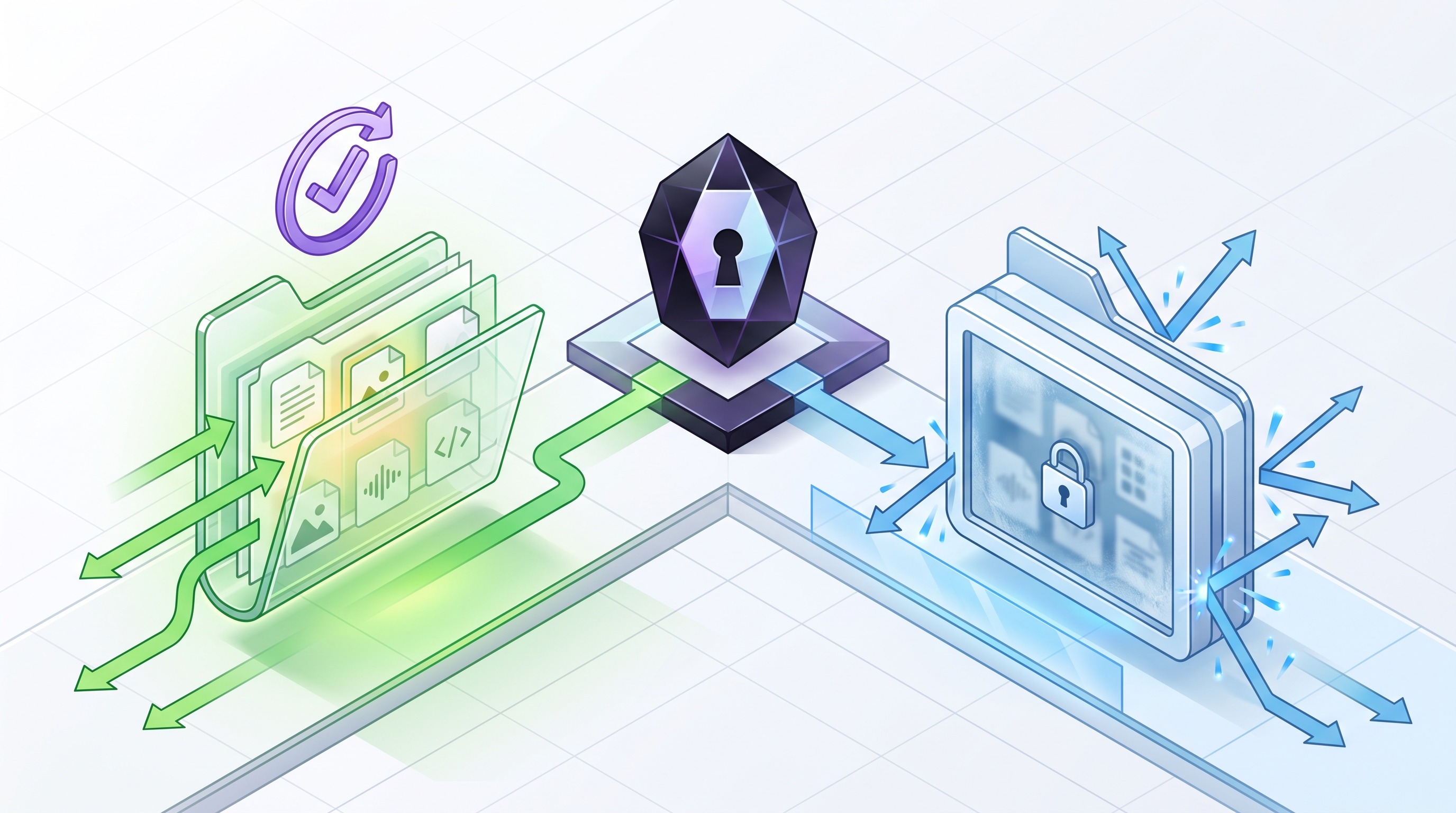
The other half of this is scoped storage, Android’s permission model for file access, which Obsidian has been fighting for years. Obsidian’s docs are blunt about it: scoped storage runs a permission check on every single file operation, which tanks performance in an app touching hundreds of small markdown files, and it gives no way to watch for external changes.
That second one is what bites sync users. Watching for external changes is exactly what you need when another app is writing to your vault in the background. It’s why Obsidian wants the broad “All files” permission instead of the narrow folder picker, and why a vault Obsidian only has partial access to behaves like it’s haunted.
Practical version: put the vault somewhere boring in shared storage. Not inside another app’s private directory, and not on an SD card if you can avoid it. Then point your sync tool at that same path.
Syncthing Is the Best Free Answer, and Every Guide Is Now Wrong About It
Syncthing is peer to peer. Your devices talk directly, there’s no cloud account, no storage cap, no monthly anything, and on Android it runs as a real background service instead of begging the OS for scraps. For a vault of text files it’s close to ideal, and it’s what I’d use if I did not have an iPad in the mix. (For the iPad half of that problem, see syncing Obsidian on iPhone and iPad for free.)
Here’s the thing every existing Android guide gets wrong, including a fair number published this year: the official Syncthing Android app was discontinued. Its final release shipped with the December 2024 version of Syncthing. The maintainers cited Google Play publishing friction and a lack of active development. If a tutorial tells you to grab “Syncthing” from the Play Store, that tutorial is pointing you at an abandoned app.
The successor is Syncthing-Fork, which has been the better Android build for years anyway. Its maintainer, Catfriend1, then retired and handed the project to researchxxl, in a way that briefly made the repo vanish from GitHub and made everyone reasonably nervous. That got sorted out in public: F-Droid and Syncthing developers reviewed the new repo, found no sign of anything malicious, confirmed the old commits were unaltered, and the builds are reproducible, which is the actual defense against a supply chain attack.
I am telling you that instead of just handing you a link because it’s your notes. Install it from F-Droid, which builds from source and has a slower review window between updates. That’s exactly the property you want on a project that just changed hands.
Setup, once you have it:

- Install Syncthing-Fork on the phone from F-Droid, and Syncthing on your desktop.
- Open the desktop UI, which is the part that throws everyone. Syncthing has no window and no icon. It runs as a background service and you configure it in a browser at
http://localhost:8384. That page is the whole app. - On that page, click Add Folder, point it at your vault, and note the Folder ID it generates.
- Pair the devices. On the desktop, Actions, then Show ID, which gives you a long string and a QR code. On the phone, Devices tab, the plus button, then scan that code. The desktop throws a prompt asking whether it should talk to this new device. Accept it.
- Back on the desktop, edit the vault folder, open its Sharing tab, and tick the phone. Now the phone gets a notification asking where to put the folder. That’s where you point it at your device-storage vault location.
- Add
.obsidian/workspace.jsonand.obsidian/workspace-mobile.jsonto the ignore patterns on both devices. Ignore patterns in Syncthing are per device, not per folder, so setting them on the desktop does exactly nothing for the phone. Both live in the same place: edit the folder, Ignore Patterns tab. These two files are per-device UI state and they change constantly, which means they conflict constantly. Nothing else in.obsidianneeds excluding, and you want your plugins and settings to sync.
The rest of the Syncthing story, including sharing a vault across more than two devices without pairing every one by hand, versioning, and the reason a mesh with no always-on member keeps producing conflict files, is in my full Syncthing guide for Obsidian.
Then let it settle before you decide it’s broken. Give it ten minutes before you touch anything. A text vault is small, but the first pass still has to hash every file, and both ends show a percentage while it works. Watch that number move instead of assuming the thing is dead.
FolderSync and Dropsync: The Cloud Folder Route
If your notes already live in Dropbox or OneDrive on the desktop and you want the phone to mirror that, this is the path. Both apps do the same job: watch a local folder, watch a remote cloud folder, keep them the same on a schedule.
Dropsync is the Dropbox specialist, now published by MetaCtrl, and it’s actively maintained. It picked up updates through spring of this year, which is more than you can say for a lot of Android utilities.
FolderSync is the generalist and talks to a long list of providers. Its pricing is confusing, so: there are two separate apps on Google Play. FolderSync (free, ad supported, with a Premium in-app purchase) and FolderSync Pro (paid up front, a few dollars). Buying Premium in the free app gets feature parity with Pro but doesn’t let you download Pro, because Play treats them as different apps. The license follows your Google account. Pick one and stay there.
Setup is the same shape either way: create an account connection, create a folderpair, set local folder to your vault and remote folder to the vault in the cloud, sync type two-way, then a schedule.
And now the caveat that makes this second choice rather than first. This is scheduled sync, not live sync. Even at the most aggressive interval there’s a window where phone and desktop disagree. Edit a note on the phone, walk to the laptop before the sync fires, edit it again there, and you have made a conflict by hand. Syncthing pushes on change and mostly dodges this. Cloud-folder sync doesn’t.
Also, and I’ll keep saying this until it stops eating people’s notes: run exactly one sync system. Not Dropsync plus Syncthing “for redundancy.” Two schedulers writing the same files without knowing about each other is a race, and your note is the prize.
Google Drive on Android Is Worse Than It Looks
This one gets its own section purely because of how reasonable it sounds. You have an Android phone, Google Drive is right there, free and already signed in. Obviously that’s the answer.
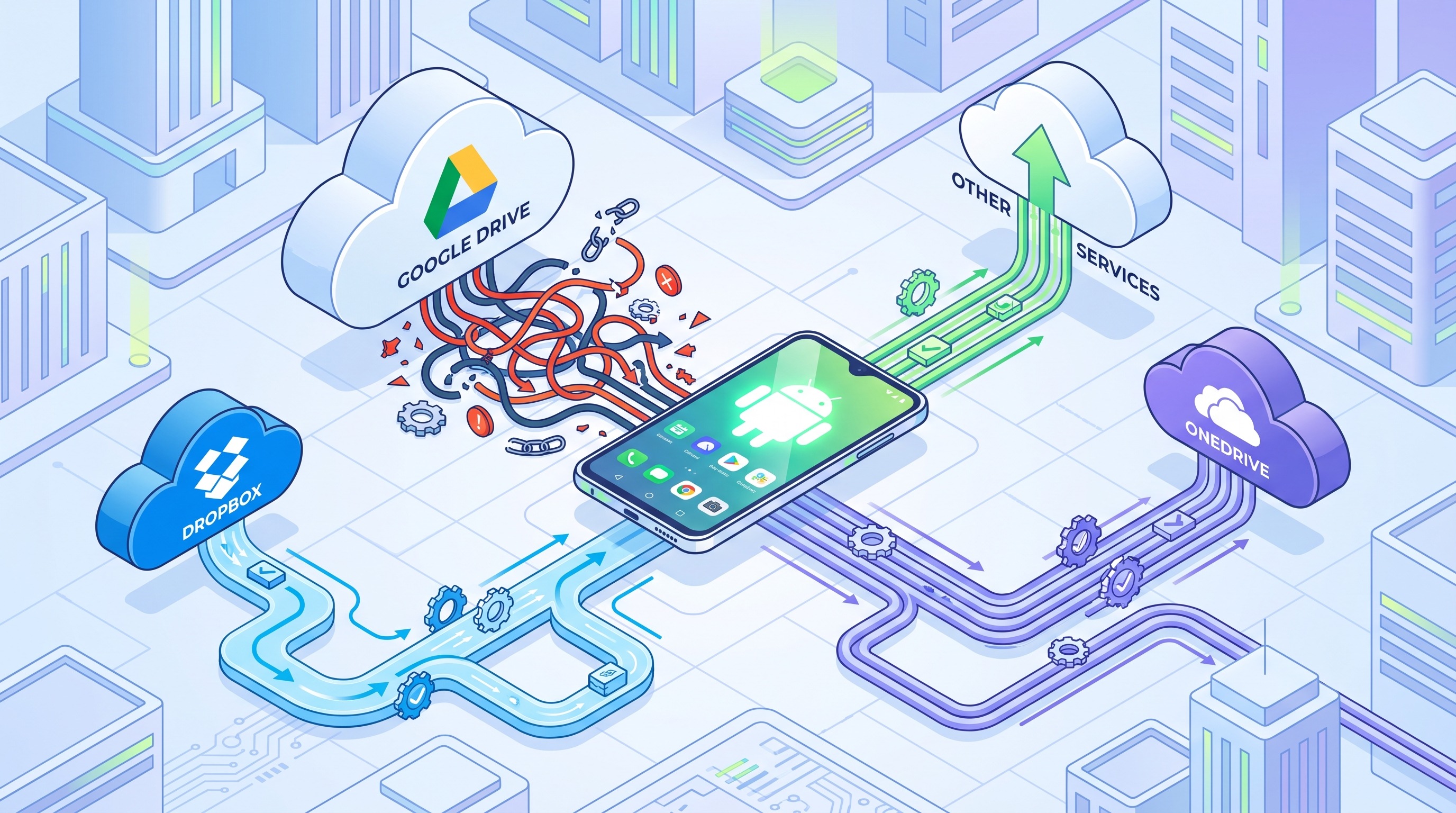
It isn’t, because Google Drive has no two-way folder sync on Android. Drive for desktop does that job on a computer and has no Android equivalent. The Drive app streams files on demand. It doesn’t keep a plain folder on disk that Obsidian can open as a vault. Getting there means going around it: FolderSync connects to Drive as a provider, or you use the Google Drive Sync plugin, which is still beta, isn’t in the community plugin directory, installs manually or through BRAT, and whose own README carries a data loss warning I quote rather than paraphrase in the main sync guide.
If you’re on Android and you want a cloud-storage-shaped answer, Dropbox with Dropsync is the one that works. Drive is the one that looks like it should work.
The Settings That Kill Your Sync in the Background
You will set all this up, confirm it works, pocket the phone, and find it three hours stale. That isn’t the sync tool. That’s Android’s battery optimizer deciding your background service is a freeloader, and manufacturer skins are far more aggressive about it than stock Android.
For whichever sync app you chose:
- Battery optimization: turn it off for that app. Roughly Settings, Apps, the app, Battery, then Unrestricted, though the wording moves around by Android version and manufacturer. This is the one that matters.
- Disable background restrictions, a separate toggle that’s easy to miss.
- Allow background data, including on metered connections if you want sync off wifi.
- Lock the app in the recents view if your phone has that. Open recents, long press the app’s card or its icon, and pick the lock or pin option. Samsung, Xiaomi, and OnePlus kill “unused” background apps on their own schedule regardless of the standard settings.
- Syncthing-Fork specifically: check its run conditions. It can be set to run only on wifi, only while charging, or only on certain networks, and the battery-friendly defaults aren’t always what you want.
If sync works while the screen is on and stops when it isn’t, you have found your problem. It’s always this.
Windows Plus Android, Specifically
This combination comes up constantly and gets bad advice, usually some variant of “just use iCloud, there’s a Windows app.” Don’t. Obsidian’s own documentation warns that iCloud Drive on Windows can lead to file duplication or corruption, which I dug into in the iCloud sync post.
For Windows plus Android with no Apple device in the mix, ranked:
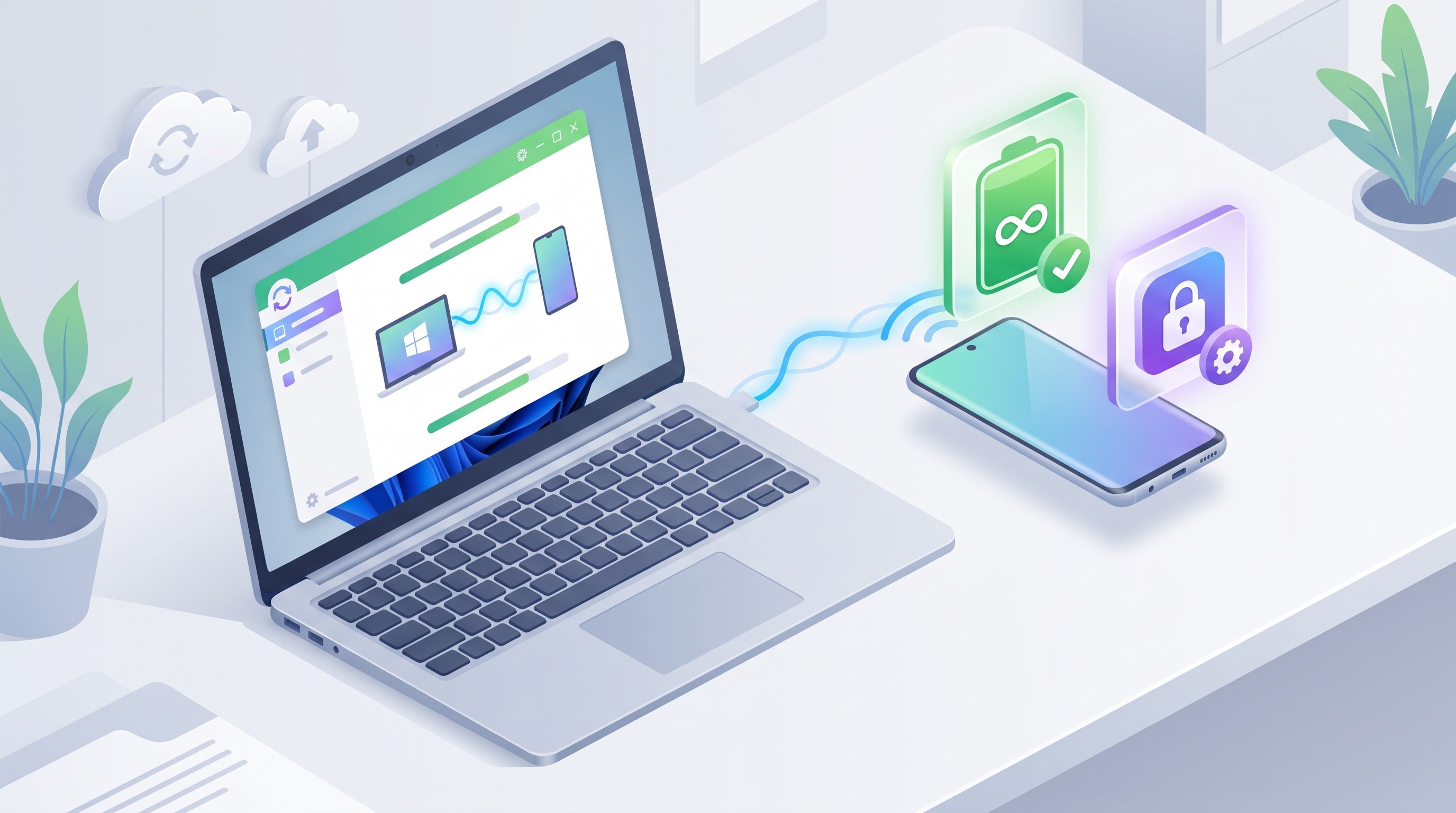
- Syncthing. Both platforms are first class, it’s free with no storage cap, and there’s no Apple sandbox to design around. This combo is where Syncthing is at its least annoying. On Windows, get it through SyncTrayzor, which wraps Syncthing in an actual tray app instead of leaving you with a background service and a browser tab. And note the pattern repeating: the original SyncTrayzor is no longer maintained either, and the v2 fork is the one Syncthing’s own docs point at.
- Dropbox plus Dropsync. If the notes are already in Dropbox, this is less work. The Dropbox side of it, free tier limits and all, is in my Obsidian Dropbox sync guide.
- Remotely Save, pointed at storage you already have: S3, Backblaze B2, any WebDAV server, Dropbox, or OneDrive. Runs inside Obsidian, so it works with app storage too, which none of the others do.
- Git, if you already live in git. It’s a real option on Android and a worse one than you expect on mobile generally, which I went through in what actually works for Obsidian git sync on mobile.
Frequently Asked Questions
Where is the Obsidian vault located on Android?
Wherever you put it, and that’s the point. Device storage puts it in shared storage where other apps can reach it, typically under a Documents folder. App storage puts it in Obsidian’s private directory, invisible to other apps and deleted if you uninstall Obsidian. Check which one you picked before troubleshooting a sync tool that can’t find your files. Open the vault switcher in Obsidian and look at the path under the vault name. If it starts with /storage/emulated/0/, you’re in device storage.
Can you sync Obsidian on Android for free?
Yes, more easily than on iOS. Syncthing is free with no storage limit, Remotely Save is free and connects to storage you already have, and Dropsync and FolderSync have free tiers that cover a vault of text notes. You never need an Obsidian Sync subscription on Android.
Does Obsidian sync with Google Drive on Android?
Not directly. The Drive app streams files rather than keeping a real synced folder on disk, so there’s nothing for Obsidian to open. You get there through FolderSync using Drive as a provider, or the third-party Google Drive Sync plugin, which is still beta and ships with a data loss warning. Dropbox is the smoother cloud option on Android.
Can you sync Obsidian between Windows and Android?
Yes, and it’s one of the easier combinations because neither platform has an iOS-style sandbox. Syncthing is the best free answer. Dropbox with Dropsync works if your vault already lives in Dropbox. Avoid iCloud on Windows for this.
Does Obsidian work with Dropbox on Android?
Yes, through Dropsync or FolderSync rather than the Dropbox app itself, which doesn’t keep a persistent local folder Obsidian can use as a vault. You need a sync utility to mirror the cloud folder to local storage.
The Short Version
Pick device storage. Grant the “All files” permission even though it feels wrong. Install Syncthing-Fork from F-Droid, not the dead official app. Ignore the two workspace files. Turn off battery optimization for whatever you installed. Run one sync system and only one.
That setup is free and it’s reliable, and the only reason my own phone isn’t running it’s that I own an iPad, which is a sentence that explains most of my sync decisions.
Related Posts

Syncing Obsidian with Google Drive Is the Trickiest One. Here Is How Anyway.
Google Drive is the cloud storage everyone already has and the worst supported option Obsidian has. Here is the desktop path, the plugin, the paid route, and...

Syncthing for Obsidian: Free, Private, and Truly Annoying
Syncthing is the only free Obsidian sync that never touches someone else's server. Here is the full setup, the best practices, and the flaw nobody warns you ...

Obsidian Dropbox Sync: A Setup Guide
I have synced my Obsidian vaults through Dropbox for years. Here is what actually breaks, what never breaks, and the fix.